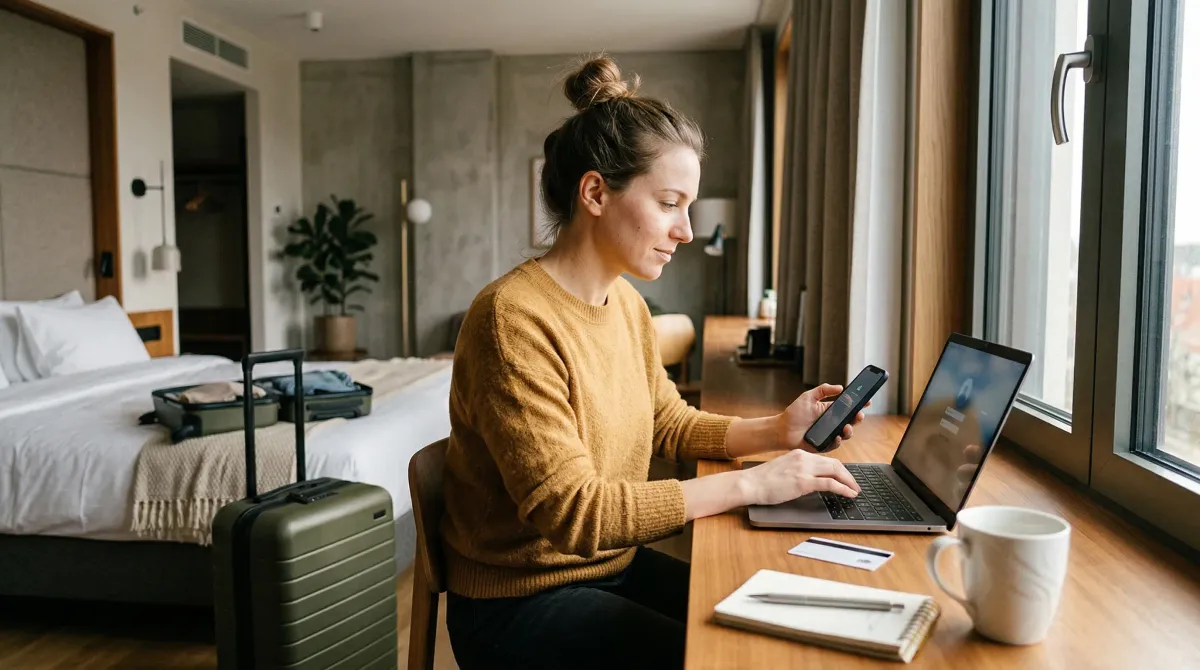
Hotel Wi-Fi is one of those travel conveniences people trust by default. You land, check in, tap “Join,” and move on.
Most of the time that works out fine. But hotels, airport lounges, and vacation rentals all create the same problem: you are tired, moving fast, and connecting in a place where the network belongs to someone else.
That is why good hotel Wi-Fi safety habits are usually small ones. You are not trying to turn a weekend trip into an IT project. You are just cutting the easy risks: fake hotspots, bad login pages, weak account protection, and devices that quietly connect to the wrong thing.
This checklist draws from guidance published by CISA, the FTC, and the FCC. I kept it centered on the habits that matter most in real travel situations, not the ones that sound impressive but never survive contact with a late check-in and a low phone battery.
How we built this checklist
I kept the list focused on three common hotel Wi-Fi problems:
- imposter networks and confusing captive portals
- account theft caused by weak logins or careless browsing
- device exposure caused by auto-connect settings, unlocked phones, or unattended gear
You do not need to do every item every time. But the first few steps buy you most of the protection with very little effort.
Hotel Wi-Fi Safety Tips: 10 Ways to Protect Your Devices While Traveling
1. Ask for the exact network name before you join
Do not guess. Do not pick the network that “looks right.”
CISA says travelers should confirm the name of the network and the exact login procedure with appropriate staff before connecting to public wireless. The FCC gives the same warning in plainer language: watch out for imposter hotspots.
That means you should ask a simple question at check-in: “What is the exact Wi-Fi name, and what should the login screen ask me for?” If the front desk says the network is HotelGuest, and your phone shows Hotel Guest Free, HotelLobby, and HotelGuest_5G, stop and verify before tapping anything.
This matters even more if the login page asks for more than a room number, last name, or access code. If a so-called hotel login page asks for a personal email password, a credit card number for “verification,” or a software download, treat that as a bad sign and confirm with staff.
2. Turn off auto-join and Bluetooth when you are not using them
Your phone and laptop do not need to spend the trip hunting for nearby connections.
CISA warns that some devices automatically seek and connect to available wireless networks and Bluetooth devices. The FCC also recommends adjusting your settings so your phone does not automatically connect to nearby Wi-Fi networks and turning Bluetooth off when it is not in use.
This is one of the easiest fixes on the list. Before a trip, or at least before you settle into the room, turn off auto-join for unfamiliar networks. Then switch Bluetooth off unless you are actively using headphones, a keyboard, or something else that needs it.
It feels minor. It is not. A device that only connects when you choose is a lot easier to trust than one that makes the decision for you.
3. Update your phone, laptop, browser, and apps before the trip
Public Wi-Fi is not the moment to discover your device is six months behind on security patches.
CISA says to update mobile software before travel, and the FTC says operating systems, browsers, security software, and apps should be kept up to date because updates often include critical protections against current threats.
If you can, let those updates happen at home before you leave. Turn on automatic updates for the basics, especially your operating system, browser, and mobile apps. If you travel for work, it is worth checking your laptop a day or two before departure instead of doing it in the hotel room while you are also trying to download maps, find dinner, and answer messages.
This step is boring. It is also one of the most useful things you can do.
4. Use a real screen lock and a short auto-lock timer
Hotel Wi-Fi safety is not only about the network. It is also about what happens if your device leaves your hand for two minutes.
The FTC recommends locking your phone with a passcode and, in its consumer guidance, suggests using at least a 6-digit passcode. CISA tells travelers to keep devices locked and get into the habit of locking them whenever they are not in use.
So do the obvious version of that advice. Set a proper screen lock. Use a PIN, passcode, biometric unlock, or a combination you actually trust. Then shorten the auto-lock timer so your phone or laptop is not sitting open on the bed, the breakfast table, or the lobby sofa longer than necessary.
It is easy to think of cyber risk as invisible and remote. A lot of travel loss is more ordinary than that. Someone sees an unlocked device, and now your email, bookings, saved passwords, and work apps are sitting there for the taking.
5. Save mobile data or a personal hotspot for the sensitive stuff
This is the cleanest rule in the whole article.
CISA says travelers should not do sensitive activities such as online shopping, banking, or sensitive work on public wireless networks. The FCC says using your cellphone data plan instead of Wi-Fi may be more secure for sensitive information. The FTC makes a similar point in its public Wi-Fi guidance.
So if you need to:
- access banking or tax accounts
- approve a work admin login
- upload sensitive documents
- reset important passwords
- enter payment details for something you would rather not get wrong
use mobile data or your own hotspot if you can.
Regular browsing, maps, streaming, and restaurant searches are one thing. Financial and account-recovery tasks are another.
6. Look for https, but do not let the lock icon do all your thinking
Encryption matters. Blind trust does not.
The FTC says most websites now use encryption, which is one reason public Wi-Fi is usually safer than it used to be. It also says you should look for a lock icon or https in the address bar when exchanging information online. The FCC repeats the same advice.
But the FTC adds an important detail that people miss: scammers can create fake websites and encrypt them too. In other words, https helps protect data on the way to a site, but it does not prove the site itself is honest.
That is why hotel Wi-Fi login pages deserve a second look. If the portal design looks off, the web address makes no sense, or an email or text suddenly tells you to “re-authenticate” by clicking a link, stop there. A secure-looking page is not the same thing as a legitimate page.
7. Turn on multi-factor authentication before you leave home
If your password leaks, multi-factor authentication can keep a bad day from getting much worse.
The FTC recommends turning on two-factor authentication, and both the FTC and CISA say it adds an extra layer of security to important accounts. The FTC also notes that authenticator apps and security keys are generally more secure than a one-time code sent by text or email if those options are available.
Travel is exactly when this matters. People sign in from new locations, new devices, and new networks. That can trigger login prompts, password resets, and all the little moments where accounts are easier to fumble.
If you only turn on one extra protection before a trip, make it MFA for:
- your main email account
- banking apps
- cloud storage
- travel booking accounts
- work accounts
Email comes first for a reason. If someone gets that, they often get the recovery path to everything else.
8. Skip hotel business-center computers for anything personal
If a hotel offers a public computer in the lobby or business center, treat it like a convenience tool, not a trusted device.
CISA warns that publicly accessible computers, including those in hotel business centers, may not be secure. They may be out of date, missing antivirus protection, or infected with malware such as keyloggers that capture what users type.
That makes them a bad place for email, banking, work accounts, cloud drives, or anything tied to your identity. Even if you are in a hurry, it is better to use your own phone on mobile data than to borrow a public machine that you cannot inspect and will never see again.
If a hotel computer is your only option for something harmless, keep it harmless. The less personal the task, the better.
9. Back up your phone and know how to lock or wipe it remotely
Travel problems are not always sophisticated. Sometimes you just leave your phone in a taxi.
Both CISA and the FTC recommend backing up important mobile data before or during travel. The FTC also recommends enabling the feature that helps you find a lost or stolen phone so you can remotely lock or erase it if necessary.
That turns a bad travel story into an inconvenience instead of a disaster. Your photos, contacts, notes, saved travel details, and work messages should not live in one fragile rectangle with a cracked screen.
This is especially worth doing before international trips, long travel days, or any itinerary that piles trains, airports, rideshares, and hotel changes into the same week.
10. If you use public Wi-Fi a lot, consider a VPN
The FCC says people who use public Wi-Fi hotspots on a regular basis should consider using a VPN because it can encrypt transmissions between the device and the internet.
That does not mean a VPN is magic. It does not replace software updates. It does not turn a fake network into a real one. And it does not give you permission to ignore weird login pages.
But if you travel often, work from hotels regularly, or spend long stretches on public networks, a VPN can be a useful extra layer. If your employer provides one, use it. If you subscribe to one yourself, make sure it is set up before the trip, not while you are already sitting in the room trying to troubleshoot it from a captive portal.
The 30-second version
If you want the shortest possible version, do this:
- Ask the front desk for the exact Wi-Fi name.
- Turn off auto-join and Bluetooth when you do not need them.
- Update your devices before the trip.
- Use mobile data for banking, payments, and sensitive work.
- Turn on MFA for email and other critical accounts.
- Avoid hotel business-center computers for anything personal.
That covers most of the big risks without making travel more annoying than it already is.
Final thoughts
Hotel Wi-Fi safety is mostly about resisting autopilot.
The risky version of travel is easy to recognize once you see it: tap the first network that looks familiar, leave Bluetooth on, sign into everything from anywhere, and assume the lock icon means the whole situation is safe. The safer version is not dramatic. It is just slower by about thirty seconds.
If you are building a more reliable travel routine, this article pairs well with our Hotel Room Safety Checklist: 11 Things to Check in the First 5 Minutes and Vacation Rental Safety Checklist: 12 Things to Check Before You Pay and Before You Unpack. One helps you trust the room. The other helps you trust the network you use inside it.
Research and references
- Cybersecurity While Traveling Tip Card, CISA
- Cybersecurity When Traveling Tip Sheet, CISA
- Wireless Connections and Bluetooth Security Tips, FCC
- Are Public Wi-Fi Networks Safe? What You Need To Know, Federal Trade Commission
- Protect Your Personal Information From Hackers and Scammers, Federal Trade Commission
- What you can do to fend off hackers, Federal Trade Commission
Discussion
Comments
Share a helpful tip, question, or takeaway from Hotel Wi-Fi Safety Tips: 10 Ways to Protect Your Devices While Traveling.
0 Comments
Loading comments…