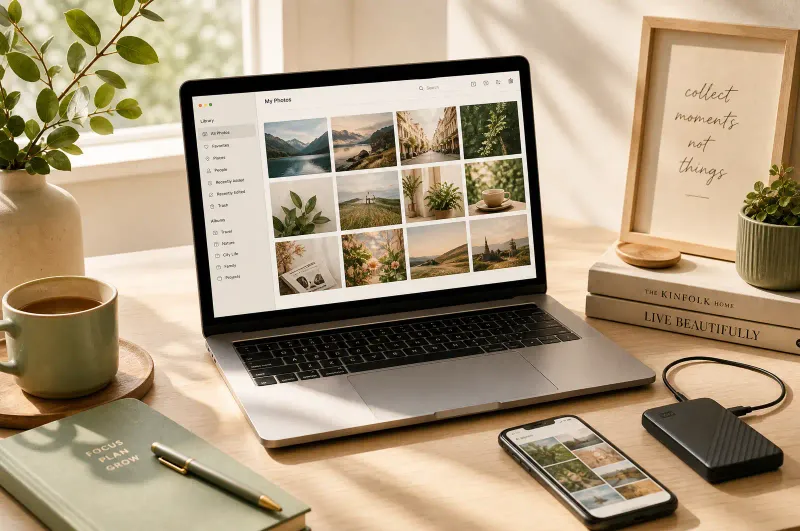
Your phone probably has more photos than a professional photographer shoots in a year. Most of them are screenshots you took once and forgot about, duplicate images from the same event, and blurry shots that didn’t make the cut the first time. Meanwhile, your Downloads folder is a graveyard of PDFs you opened once, your desktop is covered in files you meant to organize “later,” and your email inbox has 4,000 unread messages generating a low hum of anxiety every time you glance at it.
Digital clutter doesn’t take up physical space, but it costs real time and mental energy. Professional organizer Beata Kozlowski of Tidy Step by Step told Good Housekeeping that the average person spends several minutes each day just searching for files or photos they can’t find. Multiply that across a year and you’re looking at hours lost to rummaging through digital mess. And unlike a cluttered kitchen counter, digital clutter tends to grow silently — you don’t notice it until you’re drowning in it.
This guide walks through a step-by-step system for cleaning up your phone, computer, and cloud storage. Not a theoretical framework. A practical set of actions you can start today and maintain without burning out.
Why Digital Clutter Actually Matters
People dismiss digital disorganization because it’s invisible. You can’t trip over a messy desktop the way you can trip over shoes in the hallway. But the costs are real.
Wasted search time. A McKinsey study found that knowledge workers spend roughly 1.8 hours per day searching for and gathering information — about 20% of their workday (McKinsey Global Institute, 2019). Much of that time goes to hunting through poorly organized files, emails, and folders. A clean digital structure cuts that search time significantly.
Storage costs. Cloud storage isn’t free forever. iCloud charges $0.99/month for 50GB and $2.99/month for 200GB. Google One starts at $1.99/month for 100GB. If you’re paying for storage because your phone is full of junk photos, you’re literally paying for clutter.
Cognitive load. Cal Newport, author of Digital Minimalism, argues that every piece of unprocessed digital information sitting in your inbox, downloads folder, or photo roll creates a small mental tax. You know it’s there. You know you should deal with it. That low-grade awareness drains focus even when you’re not actively thinking about it. Cleaning it up doesn’t just free storage — it frees attention.
Security risk. Old files you forgot about might contain sensitive information. Apps you stopped using a year ago might still have access to your accounts. A digital declutter is also a security audit.
The 15-Minute Rule: How to Start Without Burning Out
The biggest mistake people make with digital decluttering is trying to do everything at once. Kozlowski recommends what she calls the “15-minute rule” — dedicate 15 minutes at a time to one device and one category. Don’t try to clean your phone, laptop, and cloud storage in a single Saturday afternoon. You’ll get overwhelmed and quit.
Here’s how to pace it:
- Week 1: Phone photos and screenshots (15-minute sessions, 2-3 per week)
- Week 2: Phone apps and notifications
- Week 3: Computer downloads folder and desktop
- Week 4: Computer file organization and cloud storage
Each session targets one area. You stop when the timer goes off. If you don’t finish, you pick up next session where you left off. This works because it prevents the overwhelm that kills most decluttering attempts.
Cleaning Up Your Phone: Photos, Apps, and Notifications
Your phone is the best place to start because you use it constantly and the clutter is most visible there.
Photos
The average smartphone user has over 2,000 photos stored locally. Professional organizer Tonia Tomlin of Sorted Out told Good Housekeeping that screenshots and accidental captures make up a surprising portion of that number.
Step 1: Delete the obvious junk. Screenshots, blurry photos, accidental pocket shots, and duplicate images from burst mode. On iPhone, open Photos, scroll to Utilities, and tap Duplicates — the app automatically detects and groups duplicate images so you can merge them in a few taps. On Android, Google Photos has a similar feature under Utilities > Free up space.
Step 2: Build a simple album structure. Don’t create 47 albums. Use five to eight broad categories: Family, Travel, Work, Home, Receipts/Documents, and Screenshots. Move photos into these buckets. Everything else gets archived or deleted.
Step 3: Set up automatic backup. Once your photos are organized, make sure they’re backed up to iCloud, Google Photos, or another cloud service. Then you can safely delete local copies to free up phone storage.
One person who followed this system deleted 2,000 unimportant images from a 20,000-photo library in about 30 minutes. That’s a 10% reduction in storage use from a single session.
Apps
Go through your installed apps and be honest: which ones have you opened in the last 30 days? If the answer is no, delete it. You can always reinstall later. Most people have 80-100 apps installed and actively use fewer than 30.
Pay special attention to apps that request permissions they don’t need. An app that asks for access to your contacts, camera, and location when all it does is show weather forecasts is not an app you should keep.
Notifications
Turn off notifications for every app except the ones that actually matter — messaging, calendar, and maybe your bank. Everything else can wait. Research from Deloitte found the average phone user receives 65+ notifications per day, and each one pulls your attention away from whatever you were doing (Deloitte Global Mobile Consumer Survey).
Organizing Your Computer: Files, Folders, and Desktop
Your computer’s file system is where most people’s digital clutter gets worst. The Downloads folder fills up, the desktop becomes a dumping ground, and suddenly you have five versions of the same document scattered across different locations.
The Downloads Folder
Set a weekly reminder to empty your Downloads folder. Every Friday, spend five minutes going through it. Move anything you need to the right folder. Delete everything else. If a file has been sitting in Downloads for more than two weeks without being moved, you probably don’t need it.
The Desktop
Your desktop should have no more than 5-10 items on it at any time. Everything else belongs in a proper folder. A cluttered desktop slows down your computer (the system has to render all those icons) and makes it harder to find what you actually need.
File Hierarchy
The Todoist guide to digital decluttering recommends a simple two-tier system:
Top level: Create two main folders — “Work” and “Personal.” If you use your computer for both, this separation prevents confusion.
Second level: Inside each top-level folder, create 5-8 category folders. For Work: Projects, Clients, Finance, Templates, Archives. For Personal: Photos, Documents, Home, Travel, Health.
Rule of thumb: If you can’t find a file within 30 seconds of looking, your system needs simplifying. The goal is intuition, not complexity.
Naming Conventions
Adopt a consistent naming pattern. Something like YYYY-MM-DD_description for date-based files, or category_description for general files. The key is consistency — once you pick a pattern, stick with it across all your files.
Taming Your Email Inbox
Email is its own special kind of digital clutter. An inbox with thousands of unread messages creates psychological weight, even if most of those messages are newsletters you never read.
Unsubscribe aggressively. Go through your inbox and identify newsletters and promotional emails you haven’t opened in the last month. Unsubscribe from all of them. Services like Unroll.me can batch this process.
Archive everything older than 30 days. If you haven’t needed it in a month, you probably won’t need it again. Archive it so it’s searchable but out of your inbox.
Set up filters. Create rules that automatically sort incoming mail into categories. Most email clients support this — Gmail’s filters, Outlook’s rules, Apple Mail’s smart mailboxes. Route newsletters to one folder, receipts to another, and personal email to your inbox.
Aim for zero. Not zero unread messages — zero messages sitting in your inbox that require action. Every message should be either replied to, archived, deleted, or delegated. This is the “Inbox Zero” method, and while it sounds obsessive, it actually reduces decision fatigue because you’re not constantly re-evaluating the same messages.
Cloud Storage and Sync
If you use Google Drive, Dropbox, iCloud, or OneDrive, the same principles apply. Cloud storage has the added problem of sync — a mess on one device becomes a mess on all your devices.
Audit your cloud folders. Open your cloud storage and look at the root level. If you see dozens of random folders and files, start organizing using the same Work/Personal hierarchy you use on your computer.
Check shared folders. Old shared folders from past projects or collaborations might still be syncing to your devices. Remove access to folders you no longer need.
Use selective sync. Most cloud services let you choose which folders sync to which devices. You probably don’t need your entire photo archive syncing to your work laptop. Turn off sync for large folders you only access from one device.
Set storage alerts. Configure your cloud service to notify you when you’re approaching your storage limit. This forces you to clean up before you start paying for more space.
Maintaining the System Long-Term
Decluttering once doesn’t solve the problem permanently. Digital clutter regenerates constantly — new photos accumulate, downloads pile up, emails arrive by the hundreds. The system only works if you maintain it.
Kozlowski recommends these habits:
- Daily (1 minute): Delete screenshots and accidental photos right after taking them. Don’t let them sit.
- Weekly (5 minutes): Empty your Downloads folder. Process your email inbox to zero.
- Monthly (15 minutes): Review your phone apps and delete unused ones. Check cloud storage for files that can be archived or removed.
- Quarterly (30 minutes): Deep clean photo libraries. Review app permissions. Audit cloud storage shared folders. Back up important files to a second location.
These time investments are small compared to the hours you’ll save not searching for lost files and photos throughout the year.
Tools That Actually Help
You don’t need to do everything manually. Several tools can speed up the process:
- Duplicate photo detectors: Apps like Gemini Photos (iOS) or Duplicate Photo Cleaner (Android/Windows) scan your library and flag duplicates, similar shots, and screenshots automatically.
- Cloud storage managers: Gemini 2 (Mac) or Disk Clean Pro (Windows) identify large files, old downloads, and system clutter eating up storage.
- Email unrollers: Unroll.me or Clean Email batch-process subscriptions and organize your inbox.
- File search tools: Everything (Windows) or Spotlight (Mac) make finding files fast even in messy systems — useful while you’re still cleaning up.
The best tool, though, is a calendar reminder. Schedule your weekly and monthly digital maintenance sessions just like you’d schedule a doctor’s appointment. If it’s not on the calendar, it won’t happen.
The Payoff
After a full digital declutter, you’ll notice the difference immediately. Your phone runs faster because it’s not juggling 20,000 photos. Your computer boots quicker because the desktop isn’t loaded with files. You find what you need in seconds instead of minutes. And that background anxiety from knowing your digital life is a mess — it goes away.
Digital organization isn’t glamorous. Nobody’s going to compliment your folder structure. But the time and mental energy you reclaim add up to something real, and once the system is in place, maintaining it takes less than 15 minutes a week.

Discussion
Comments
Share a helpful tip, question, or takeaway from Your Phone Has 2,000 Photos You'll Never Look At — A Digital Declutter Guide.
0 Comments
Loading comments…